

Prerequisites
- An organization Owner or Admin role.
- Domain management enabled for your organization through its plan capabilities.
- Access to DNS settings for the domain you want to verify.
Add and Verify a Domain
1
Open Domains & Access
Open Domains & Access ↗ under your organization.
2
Add your domain
Click Add Domain, enter the email domain (for example,
acme.com), and submit it. Krea shows the DNS verification details. You can choose Verify Later and return to the pending domain from the domains table.3
Create the DNS record
Copy the TXT value exactly as shown and add it at your DNS provider.
For a subdomain, make sure the record resolves at that subdomain rather than at the parent domain.
4
Verify in Krea
Return to Krea and click Verify Domain. The domain remains Pending until the DNS check succeeds, then shows as Verified. If DNS has not propagated yet, wait and try again.
New organization domains start with capture Enforced. Once the domain is
verified, signups with a matching email join your organization. To change
this, pick another capture mode in the domains table.
Capture Modes
In the domains table, use the verified domain’s Capture mode dropdown.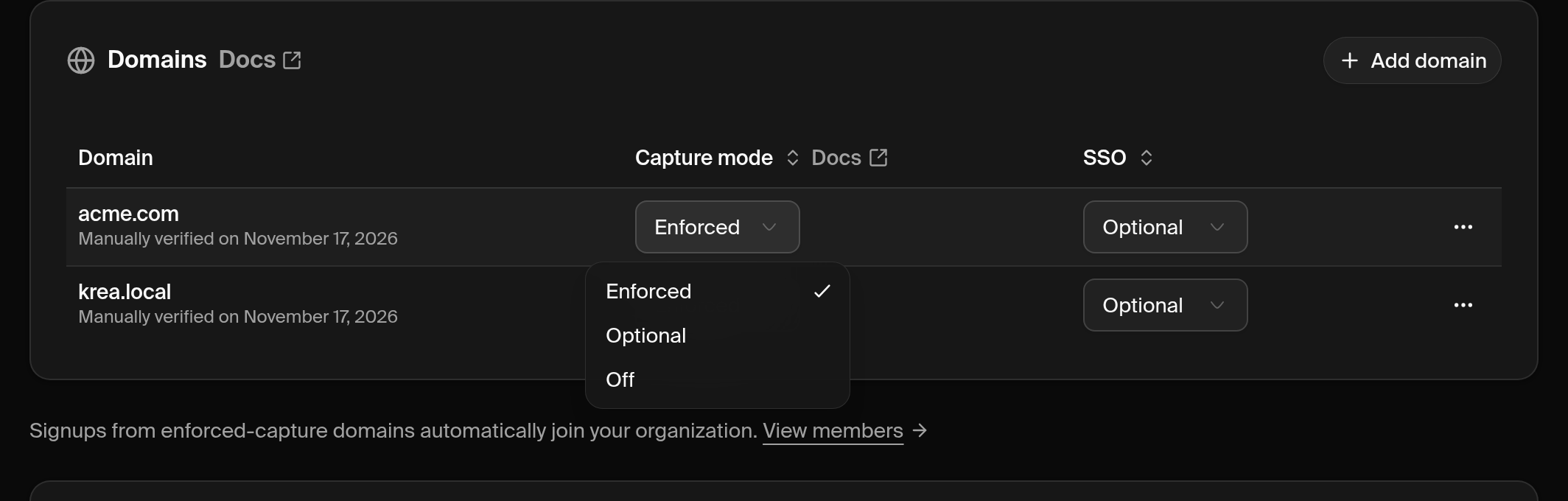
Keep capture Enforced for company domains unless you have a reason not to. With Off or Optional, a teammate who signs up through the regular login page instead of SSO ends up in a separate Free workspace outside your organization. Signing in through one of your SSO configurations with an email on a verified domain always adds the user to the organization, whatever the capture mode.
Domain capture decides organization membership only. Manage access to individual workspaces in Workspaces → Workspace Access, or add members to a workspace directly. See Managing Your Organization.
Capture mode and SSO are different columns. Capture controls whether
a signup joins your organization. SSO controls which sign-in methods users on
the domain may use.
Domains and SSO
Once your organization has an active SAML configuration, every verified domain’s SSO column shows Optional, and users on the domain can sign in with SSO or another method. Choose Required in that column to allow only SSO. Pending domains show Verify first until DNS verification succeeds. For the full setup and enforcement steps, see SAML SSO Setup.Troubleshooting
The DNS check fails
The DNS check fails
Check that the TXT record is published at the exact domain you entered and
that its value matches Krea’s token. Allow time for DNS propagation before
retrying. Keep unrelated TXT records, such as email authentication records,
in place.
I can't add or change domains
I can't add or change domains
Check your organization role and plan capabilities. If the page shows
Managed by Krea, contact support.
I see Workspace Domains as well as organization domains
I see Workspace Domains as well as organization domains
Workspace Domains lists older workspace-level domain settings. Use
organization domains for the organization setup described here. Contact Krea
if you need help consolidating an older configuration.
A verified domain did not enroll my teammates
A verified domain did not enroll my teammates
Check that the domain’s Capture mode is Enforced. Domains added
before Enforced became the default may still be Off. Enforced capture
doesn’t move people who already signed up. Bring their workspaces in with
Capture workspaces on the Workspaces page, then check workspace
access.
I can't remove a domain
I can't remove a domain
A domain with SSO set to Required can’t be removed. Set it back to
Optional first.